- Swift 97.7%
- Shell 2.3%
| Filename | Latest commit message | Latest commit date |
|---|---|---|
| .github/workflows | ||
| Resources | ||
| Sources/AKeyboardSwitcher | ||
| .gitignore | ||
| build-app.sh | ||
| LICENSE | ||
| Package.swift | ||
| README.md | ||

AKeyboardSwitcher

A macOS menu bar app for quickly moving paired Apple Magic Keyboard, Mouse and Trackpad between Macs.
Motivation
Working from my home office, I share a single Apple Magic Keyboard and Magic Mouse between my corporate Mac and my personal Mac. Until now, the easiest way to switch the active device was to plug in the cable on the Mac that should take over the keyboard and mouse. With AKeyboardSwitcher this gets much easier: you simply need to click :)
Screenshot
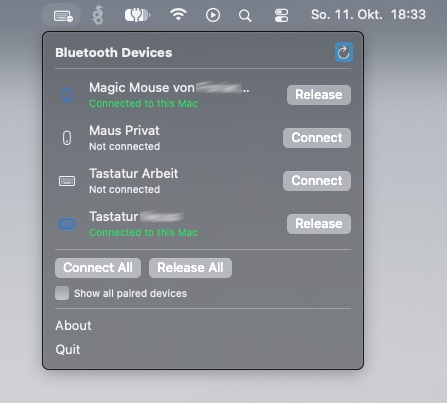
For quick changes, you can also group multiple devices together that can be connected or released (even by hotkeys).
Features
- Overview of all or only connected devices
- Quickly connect/release single Bluetooth devices
- Group devices together to quickly connect/release them
- Hotkey support
Build
Requires macOS 13+ and the Swift toolchain (Command Line Tools are enough).
./build-app.sh
open build/AKeyboardSwitcher.app
On first launch macOS asks for Bluetooth permission. Allow it.
Usage
Click the keyboard icon in the menu bar to see your paired input devices:
- Connect: connect the device to this Mac.
- Release: disconnect the device from this Mac so another Mac can take it.
- Connect All / Release All: do the same for every listed device.
- Show all paired devices: also list non-input devices (headphones etc.).
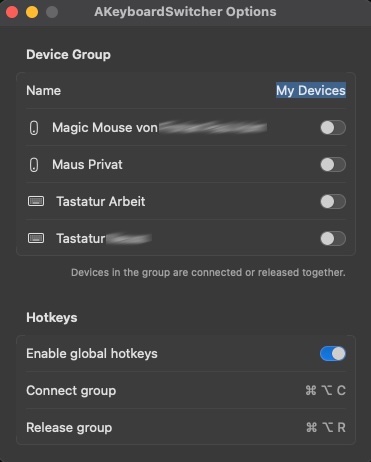
- Options…: set up a device group and global hotkeys (see below).
Device group and hotkeys
In Options… you can give your group a name and select the devices that belong to it, e.g. your Magic Keyboard and Magic Mouse. The group then shows up in the menu with its own Connect and Release buttons, and can be switched from anywhere with these global hotkeys:
| Hotkey | Action |
|---|---|
| ⌘ Command + ⌥ Option + C | Connect all devices in the group |
| ⌘ Command + ⌥ Option + R | Release all devices in the group |
The hotkeys can be turned off in Options…. While they're on, they take priority over the same shortcuts in other apps (e.g. Finder's "Copy as Pathname"). If another app already reserved them, Options shows a warning.
A Bluetooth keyboard, mouse or trackpad can only be connected to one host at a time. To move a device, run the app on both Macs. Press Release on the Mac that has the device, then Connect on the Mac that should get it.